Paystub Basics
Paystub Format: What Changes Between Templates
A template controls position, labels and emphasis. Here is what may move between layouts, what must stay fixed, and how a template switch can expose data errors.
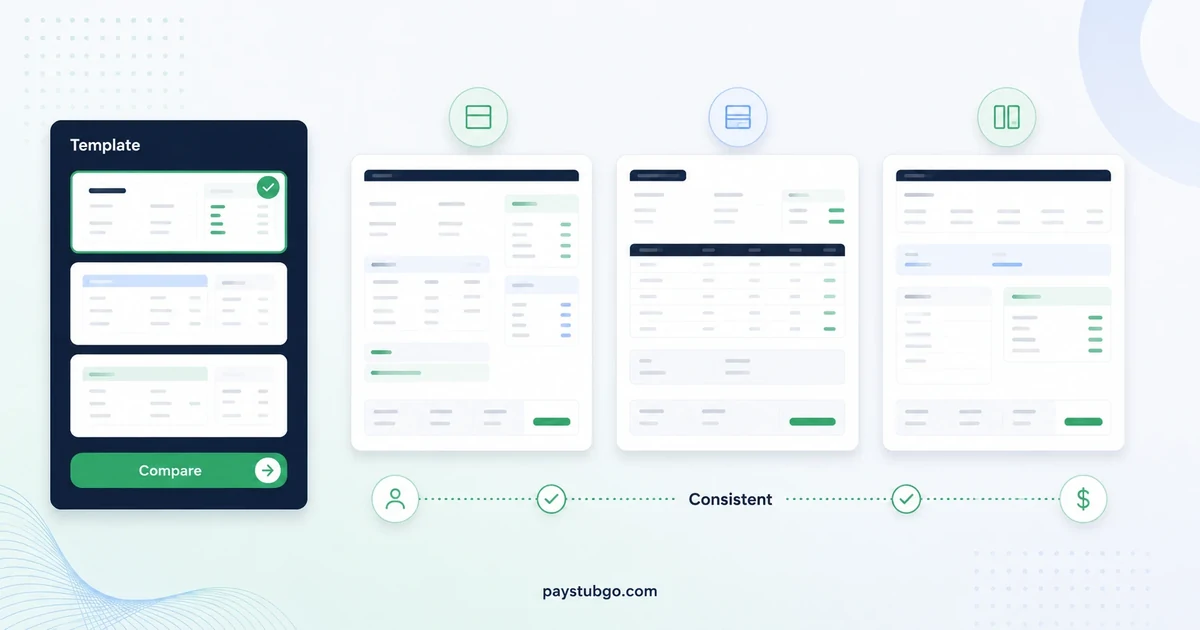
Table of Contents
What this guide covers
12 sectionsHide
Table of Contents
What this guide covers
Scroll inside this box to view all guide topics.
- The presentation layer a template controls
- Values that must survive every template switch
- Why a style choice should never move a pay figure
- How PayStubGo's six templates arrange the same data
- Layout differences that are easy to misread
- When a template exposes a data problem
- Picking a layout by who will read the stub
- Template switches that do call for a data change
- Keeping a run of stubs consistent
- Changing templates partway through a year
- How a layout behaves on paper, on screen and in the PDF
- What a template will not do for your record
A paystub template decides where information sits, how sections are labeled and which figure the eye lands on first. It never decides the figures themselves. Switch from one layout to another and the pay period, pay date, every earnings and deduction line, net pay and year-to-date totals should come out identical, to the cent.
That makes a template switch a useful test as well as a style choice. If a number moves when only the design changed, something went wrong in the data, not in the layout. The sections below separate the two layers, compare PayStubGo's six live templates side by side, and show how to use a template change to catch errors before the PDF is final.
The presentation layer a template controls
A template is a set of rules for arranging the same inputs. Those rules cover five things:
- Position: whether employer details sit in the top left or across a header band, and whether net pay appears in a summary block near the top or at the foot of the page.
- Grouping: whether rate and hours share columns with current pay in a grid, or appear as a caption under each earnings line.
- Emphasis: font weight, shaded headers, borders and white space that pull attention toward one figure.
- Labels: the words printed beside each value, such as "Pay Period" or "Reporting Period", "Employee #" or "Employee ID".
- Optional blocks: whether year-to-date values or a check number are printed when you supply them.
None of those decisions touches arithmetic. A layout can make $1,080.96 easier or harder to find. It cannot turn it into $1,008.96.
Label wording is presentation, not meaning
Two templates may print different words for the same field. On PayStubGo's sample previews, Refined Blue calls the date range a "Reporting Period" while Default calls it "Pay Period", and the Blue summary layouts print "Check Number" where Default prints "Stub #". The value underneath comes from the same form field either way.
That matters when someone compares two stubs prepared in different layouts. A reader who sees "Reporting Period" on one and "Pay Period" on the other should find the same dates in both places. If the dates differ, the label is not the explanation.
Labels you write yourself behave differently. A custom deduction named "Parking permit" prints with exactly that wording in every layout, so no template can rescue an unclear label. What changes is space: a label that fits on one line in a wide grid may wrap in a narrow card, which is a good reason to keep custom labels short and specific.
Values that must survive every template switch
The table below sets out what a template may alter for each part of the stub and what must stay fixed.
| Part of the stub | What a template may change | What must stay identical |
|---|---|---|
| Employer and employee blocks | Position, font, line breaks in long addresses | Names, addresses, EIN, employee ID |
| Dates | Label wording and header placement | Period start, period end, pay date |
| Earnings | Grid columns or captions under each line | Each line's rate, hours and amount |
| Deductions | Spacing, headings and borders | Each deduction amount and the total |
| Summary | Placement near the top or at the foot | Gross pay, total deductions, net pay |
| Year-to-date | Where YTD values are printed | Every YTD amount you entered |
If you are unsure how the summary figures relate, the walk-through of how gross pay becomes net pay is worth reading first, because the summary block is the part templates rearrange most.
Why a style choice should never move a pay figure
A pay stub gets read against other records. The person paid checks net pay against a bank deposit. A bookkeeper checks year-to-date totals against the previous stub. An employer checks rate and hours against a timesheet. Every one of those comparisons assumes the figures come from the pay data alone.
If picking a different design could shift a figure, those comparisons would stop working. A net pay that reads $1,412.60 in one layout and $1,421.60 in another leaves no way to tell which is the real record. A dependable builder therefore keeps data and design in separate layers, and you should treat any figure that changes during a template switch as a data problem to trace.
There is a consistency reason too. When stubs cover consecutive pay periods, the reader looks for what changed between them: a bonus, extra overtime, a new deduction. Stable figures across layouts, and ideally one layout across the whole run, let real changes stand out instead of hiding among cosmetic ones.
Running a switching test in the preview
Because the figures should hold still, a template switch doubles as a check. Enter the stub once, write down five numbers from the preview, switch to a layout with a different structure, and read the same five numbers again.
Illustrative example (made-up figures): An hourly employee works 36 regular hours at $22.50 and 4 overtime hours at $33.75 in one weekly period.
- Regular pay: 36 × $22.50 = $810.00
- Overtime pay: 4 × $33.75 = $135.00
- Gross pay: $810.00 + $135.00 = $945.00
- Deductions (assumed amounts): federal withholding $68.00, Social Security $58.59, Medicare $13.70, state tax $24.00, health insurance $40.00
- Total deductions: $68.00 + $58.59 + $13.70 + $24.00 + $40.00 = $204.29
- Net pay: $945.00 − $204.29 = $740.71
In a grid layout, $945.00 sits at the foot of the earnings table and $740.71 at the bottom of the totals block. In a summary-first layout, both appear near the top as well. The positions move, but the five numbers you noted (overtime hours, overtime amount, gross, total deductions and net) must match exactly. If the overtime amount reads $153.00 after the switch, someone edited the hours or rate between views, and that edit needs checking against the timesheet.
How PayStubGo's six templates arrange the same data
All six live templates are included in the price, and you can switch between them in the preview before paying. Their sample previews use the same pay data, which makes the structural differences easy to spot.
| Template | Layout pattern | Where net pay appears | Worth knowing |
|---|---|---|---|
| Default | Grid with Description, Rate, Hours and Current Pay columns | Totals block at the foot | Prints "Stub #" in the header |
| Professional Classic | Traditional payroll-style grid | Totals block at the foot | Suits readers used to printed payroll stubs |
| Classic Blue | Card-style sections with a Pay Summary block | Summary near the top and again at the foot | Rate and hours sit under each earnings line |
| Detailed Blue | Earnings statement with a Pay Summary block | Summary near the top and again at the foot | Header lists frequency and check number |
| Refined Blue | Earnings statement built on a grid | Totals block at the foot | Labels the dates "Reporting Period" |
| Minimal Professional | Bordered information cells | Summary at the foot | Pay period, pay date and IDs get separate cells |
Two patterns explain most of the differences. Grid layouts (Default, Professional Classic and Refined Blue) let a reader multiply across a row: rate times hours equals current pay. Summary-first layouts (Classic Blue and Detailed Blue) answer "what was paid" before showing how. Minimal Professional sits between them, with a cell-based header and a summary at the bottom. For a closer look at those families, see classic and modern layouts compared.
Layout differences that are easy to misread
Some visual differences get mistaken for differences in the record. Four come up often.
- A figure printed twice is still one payment. Summary-first layouts show net pay near the top and again at the foot. Anyone adding up the page should count it once.
- The heading does not change the document type. Every one of the six sample previews prints "Earnings Statement" at the top, whether the template is described as a pay stub or an earnings statement style.
- Color and borders carry no status. A blue header band or shaded totals row is a design choice. It does not make one stub more official than another prepared from the same figures.
- Block order does not say who issued the stub. Whether the employee block sits beside or below the employer block, the employer details are still the payer's details you entered.
When two stubs from different layouts seem to disagree, compare the underlying values line by line before drawing any conclusion from how they look.
When a template exposes a data problem
Sample previews are forgiving because sample data is tidy. Your own entries may not be, and the layout is often where that becomes visible.
- Blank or zero cells. Year-to-date fields you skipped show up as gaps or zeros wherever a layout prints them. Seeing an empty YTD value is a prompt to find the figure, not to switch to a layout where the gap is less obvious.
- Wrapped text. A long business name or a two-line address can push the header down and crowd the earnings block. Check that the full name still reads correctly rather than shrinking or trimming it.
- Stacked deductions. Six or seven deduction lines fit neatly in a grid but lengthen a card layout. If the totals end up in a crowded corner, choose the layout that keeps them legible.
- Duplicate lines. A health insurance premium entered once as a preset and again as a custom deduction appears twice in any layout, and seeing it twice in a narrow summary is often what prompts a second look.
Illustrative example (made-up figures): A salaried employee earns $2,400.00 per semimonthly period. The stub being prepared is for the seventh pay date of the year, with no raises, bonuses or unpaid leave so far.
- Expected YTD gross: 7 × $2,400.00 = $16,800.00
- YTD gross actually entered: $2,400.00
A layout that prints current and YTD values close together shows $2,400.00 in both places, which is the giveaway that the current figure was copied into the YTD field. The fix belongs in the data, and the explainer on what YTD totals include shows how that running figure should build from one period to the next.
Picking a layout by who will read the stub
The choice gets easier once you know the reader's first question.
- Someone checking a deposit wants net pay at a glance, so summary-first layouts suit them.
- A bookkeeper reconciling hours wants rate, hours and current pay in columns, which grid layouts handle best.
- Anyone comparing several periods wants the same structure every time, so keeping one layout matters more than which one it is.
- A stub with one or two earnings lines can look sparse in a heavy grid, and a lighter bordered layout carries it without large empty areas.
- A stub that will be printed and filed benefits from sections separated by rules and headings rather than by color alone.
When two kinds of reader will see the same stub, favor the one who compares figures over the one who only glances at net pay. A checking reader loses far more time to an awkward layout than a glancing one does.
A step-by-step method for testing previews against those needs, including print checks and a five-second net pay test, is in choosing a template for readability.
Template switches that do call for a data change
Sometimes a new layout reveals that the record itself is incomplete. A grid with a clear local tax row may remind you that your source stub lists a city tax you left out. A summary block may make it obvious that a reimbursement was folded into gross pay when your records show it as a separate payment.
Those are legitimate edits, but they are data edits. Make them against the source document rather than because a layout looks emptier or fuller, and note what changed if the new stub replaces an earlier version. That keeps the rule intact: figures change only when the inputs change.
A related question is whether a fixed layout is the right tool at all. If you are weighing a downloadable file against a guided form, the comparison of a generator or a blank template sets out where each one tends to introduce errors.
Keeping a run of stubs consistent
When several consecutive periods are prepared together, consistency across the set matters as much as the look of any single page. PayStubGo's 3-stub pack and 6-stub pack produce consecutive pay periods from the same details in one template, so the layout you pick carries across the whole set.
Illustrative example (made-up figures): Three biweekly stubs for a worker paid $1,650.00 gross each period, starting from a YTD gross of $9,900.00 before the first of the three.
- First stub YTD gross: $9,900.00 + $1,650.00 = $11,550.00
- Second stub YTD gross: $11,550.00 + $1,650.00 = $13,200.00
- Third stub YTD gross: $13,200.00 + $1,650.00 = $14,850.00
Printed in one layout, those three YTD figures sit in the same spot on each page, so a reader can flip through the set and see the $1,650.00 step every time. Mixed layouts force the reader to hunt for the figure on each page, which is exactly when a skipped or doubled period slips past.
Changing templates partway through a year
Businesses sometimes adopt a new layout midyear, and individuals sometimes prefer a different look after a few periods. The switch is harmless as long as the record around it stays clear.
- Keep stubs already issued exactly as they were issued. Re-creating earlier periods only to match a new look produces two versions of the same period, and a reader cannot tell which came first.
- Start the new layout on a specific pay date and note that date alongside your payroll or bookkeeping records.
- Carry YTD values forward unchanged. The first stub in the new layout continues from the last YTD figures in the old one rather than restarting.
- Tell anyone who reviews the stubs regularly that the layout changed, so a moved figure is not mistaken for a changed one.
If an earlier stub was wrong, that is a correction rather than a style change, and it deserves to be documented as one.
How a layout behaves on paper, on screen and in the PDF
A template also decides how the stub holds up outside the preview. Three output differences are worth knowing before you commit.
- Grayscale printing. Blue header bands and shaded rows become gray blocks on a black-and-white printer. Labels inside dark bands can lose contrast, so a layout with lighter section markers may file better on paper.
- Small screens. A PDF opened on a phone shrinks every cell by the same amount. Four-column grids get tight at that width, while summary-first layouts keep the headline figures large enough to read without zooming.
- Page length. Card-style sections use more vertical space per line, so a stub with many earnings and deduction lines runs longer in those layouts than in a compact grid.
The layout is fixed inside the delivered PDF, whether it arrives by email or download, so settle the template while you can still switch in the preview.
What a template will not do for your record
A template adds structure, not verification. Before finishing, run the preview against the list of mistakes worth catching before download, since a polished layout can make an error look settled.
Rules about what a wage statement must show are set mainly by states, not by any template. The US Department of Labor notes that the federal Fair Labor Standards Act does not itself require pay stubs, while several states list required items such as total hours worked or the employer's address. If a required item matters in your situation, check your state labor agency's wage statement rules and confirm the field is filled, whichever layout you choose.
PayStubGo turns the figures you enter into a paystub-style PDF; it does not run payroll, verify income or confirm tax amounts. Questions about withholding or legal requirements belong with the employer's payroll provider or a tax professional.
PayStubGo
Create a paystub from your own details
Preview your paystub, review the layout, and download a clean PDF when the information looks right.